SHEET A // ON THE HUB
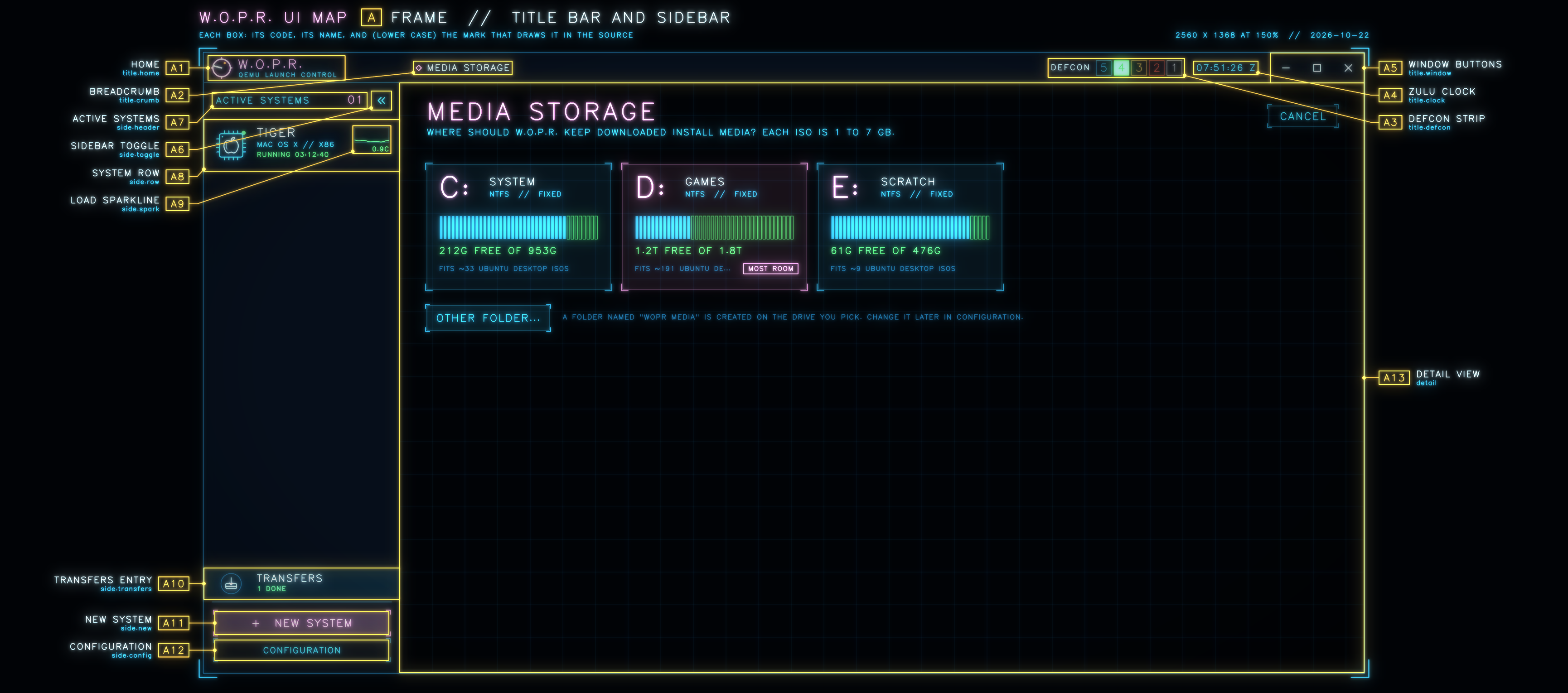
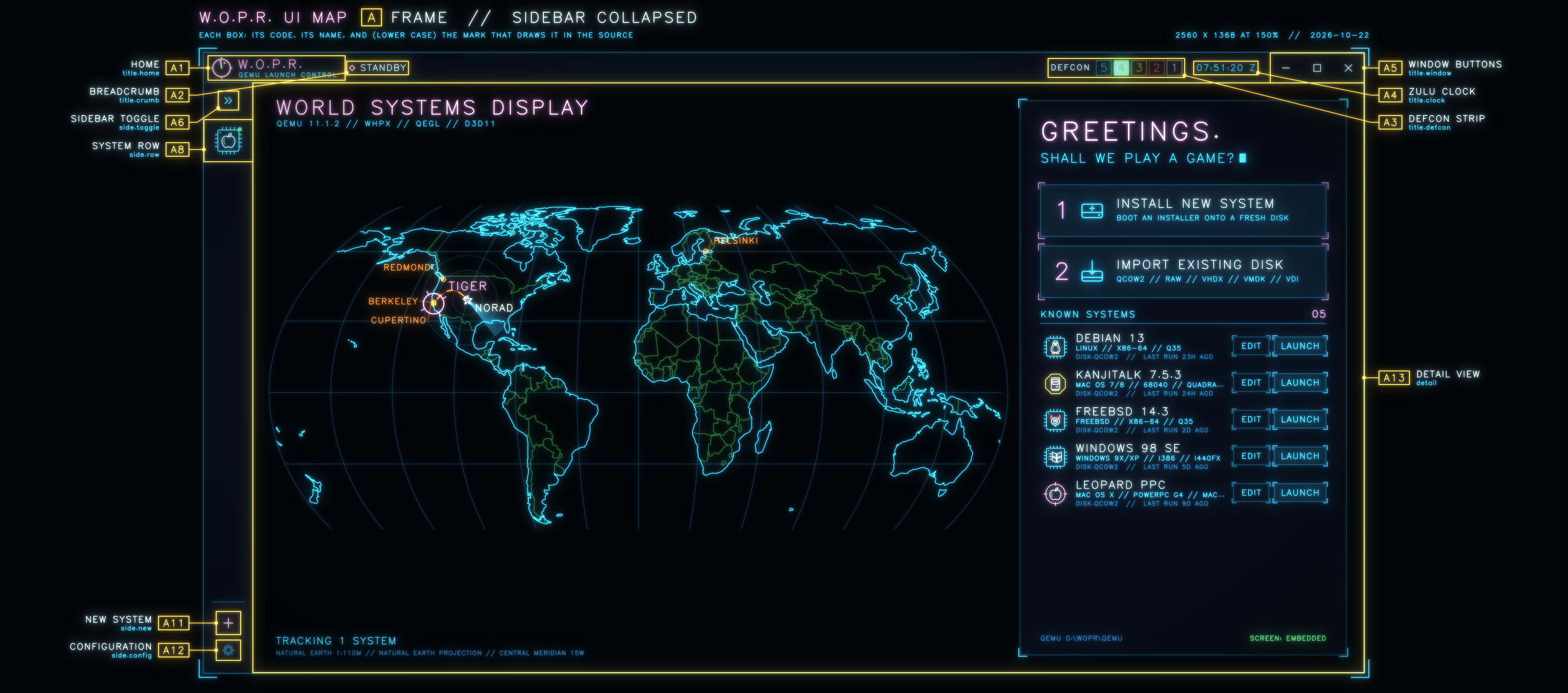
| CODE | NAME | IN THE SOURCE | WHAT IT IS |
|---|---|---|---|
| A1 | HOME | title.home | The mark and the name. A click goes back to the world display |
| A2 | BREADCRUMB | title.crumb | Which view this is: STANDBY, MISSION PLANNER, TRACKING: TIGER... |
| A3 | DEFCON STRIP | title.defcon | 5 with nothing running, one step down per running system; 2 and 1 blink |
| A4 | ZULU CLOCK | title.clock | UTC |
| A5 | WINDOW BUTTONS | title.window | Minimise, maximise, close |
| A6 | SIDEBAR TOGGLE | side.toggle | Collapses the sidebar to icons (second picture) and back; also Ctrl+Alt+B |
| A7 | ACTIVE SYSTEMS | side.header | The running systems, and how many |
| A8 | SYSTEM ROW | side.row | One running system: icon, name, profile, state and uptime. A click tracks it |
| A9 | LOAD SPARKLINE | side.spark | Its CPU load over the last 25 samples, and now, in cores |
| A10 | TRANSFERS ENTRY | side.transfers | Shown while install media downloads: a progress ring, the count, the percentage |
| A11 | NEW SYSTEM | side.new | Back to the world display, where installs and imports start |
| A12 | CONFIGURATION | side.config | Paths and QEMU targets (sheet C) |
| A13 | DETAIL VIEW | detail | Everything right of the sidebar: one of the other sheets |
SHEET W // ON THE HUB
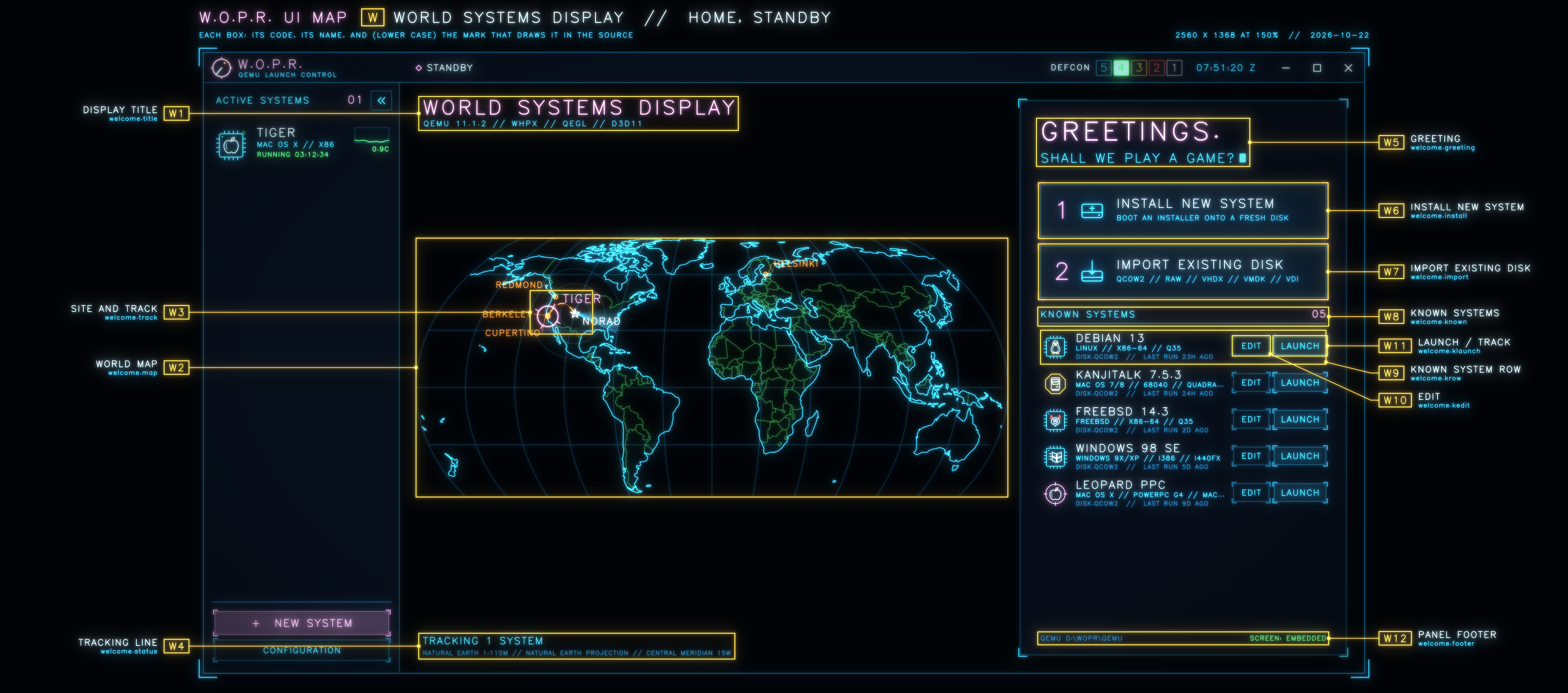
| CODE | NAME | IN THE SOURCE | WHAT IT IS |
|---|---|---|---|
| W1 | DISPLAY TITLE | welcome.title | With the line naming what it runs on: QEMU 11.1.2, WHPX, qegl, D3D11 |
| W2 | WORLD MAP | welcome.map | Natural Earth 1:110m. The orange sites are where the known systems come from |
| W3 | SITE AND TRACK | welcome.track | A running system: its site, its name tag and the track to NORAD |
| W4 | TRACKING LINE | welcome.status | How many systems are running, and the map's projection |
| W5 | GREETING | welcome.greeting | Typed out letter by letter when the view opens |
| W6 | INSTALL NEW SYSTEM | welcome.install | Opens the mission planner (sheet P) |
| W7 | IMPORT EXISTING DISK | welcome.import | Asks for a disk image, then opens import (sheet I) |
| W8 | KNOWN SYSTEMS | welcome.known | Every system W.O.P.R. knows, and how many; the list scrolls |
| W9 | KNOWN SYSTEM ROW | welcome.krow | Icon, name, profile, disk file, last run. A click opens edit (sheet E) |
| W10 | EDIT | welcome.kedit | The same as clicking the row |
| W11 | LAUNCH / TRACK | welcome.klaunch | LAUNCH starts it. It reads TRACK once the system runs, and MEDIA 27% while its installer downloads |
| W12 | PANEL FOOTER | welcome.footer | Which QEMU folder is in use, and whether its screens embed or only mirror |
SHEET V // ON THE HUB
This is where the overlap was. Whenever the guest's picture filled the height, V8 ran into V9 and V10. Fixed on 2026-10-22: the screen leaves room for the hint line.
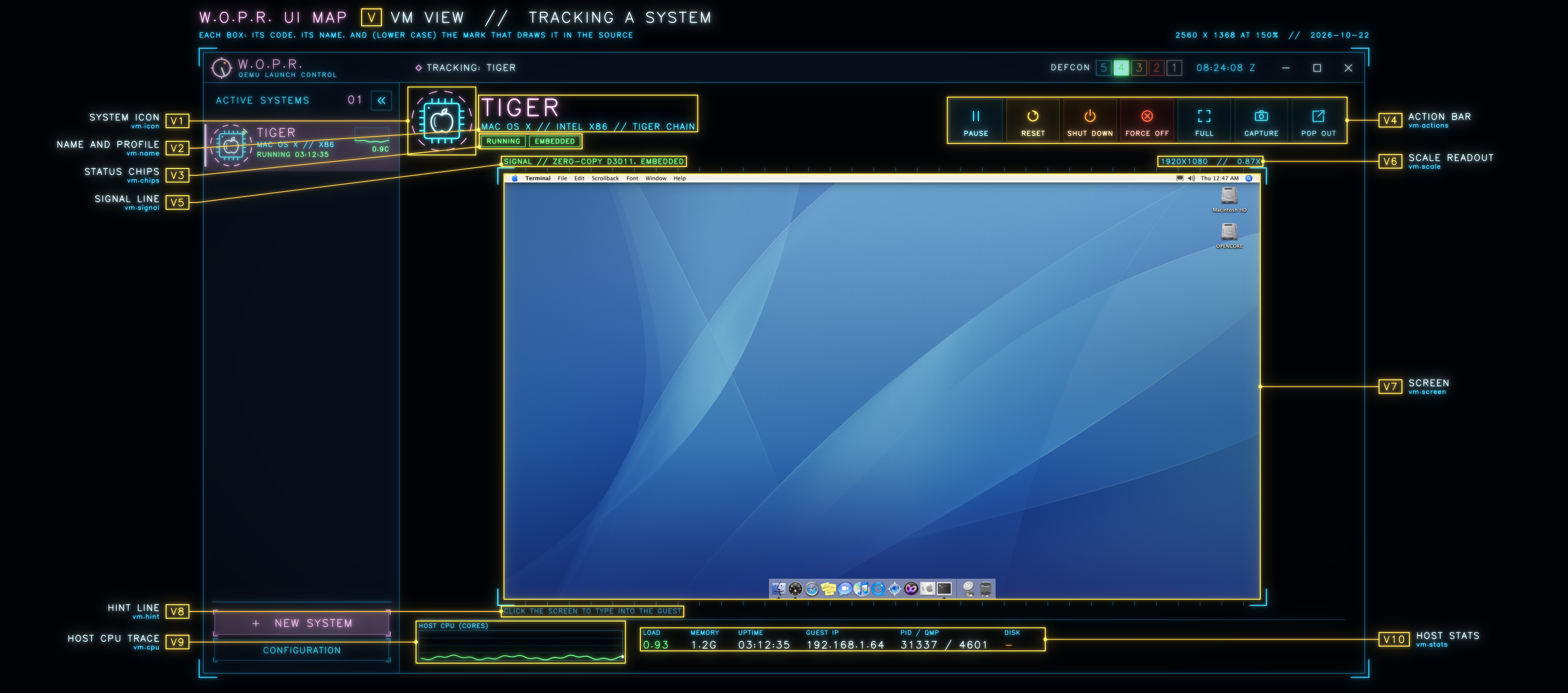
| CODE | NAME | IN THE SOURCE | WHAT IT IS |
|---|---|---|---|
| V1 | SYSTEM ICON | vm.icon | The profile's icon, inside the tracking ring |
| V2 | NAME AND PROFILE | vm.name | The name, then OS // architecture // machine |
| V3 | STATUS CHIPS | vm.chips | The state, EMBEDDED or MIRROR, and when they apply EXTERNAL, SCRATCH, a QEMU folder other than the usual one, MOUSE GRABBED |
| V4 | ACTION BAR | vm.actions | PAUSE, RESET, SHUT DOWN, FORCE OFF, FULL, CAPTURE, POP OUT (or DOCK, WINDOW), EJECT, CONFIG. Reset, shut down and force off need a second click |
| V5 | SIGNAL LINE | vm.signal | How the picture gets here: zero-copy D3D11 embedded, or a read-only mirror |
| V6 | SCALE READOUT | vm.scale | Guest resolution and scale; a whole number means pixel-exact |
| V7 | SCREEN | vm.screen | The guest. Click it to type into the guest; Ctrl+Alt+F fills the monitor |
| V8 | HINT LINE | vm.hint | What clicks and keys do here; an amber warning for a mirror |
| V9 | HOST CPU TRACE | vm.cpu | QEMU's CPU use over time, in cores; the top is the VM's processor count |
| V10 | HOST STATS | vm.stats | LOAD (cores now), MEMORY, UPTIME, GUEST IP, PID / QMP port, DISK. GUEST IP is the address on the LAN when the VM has a NIC there, else the one behind user-mode NAT; W.O.P.R. looks it up only while the VM is on screen |
SHEET P // ON THE HUB
Step 1 picks a profile and step 2 sets it up. The third picture is step 2 for Linux, where W.O.P.R. offers the official releases itself. Pictures 2 and 3 label only what the earlier ones didn't.
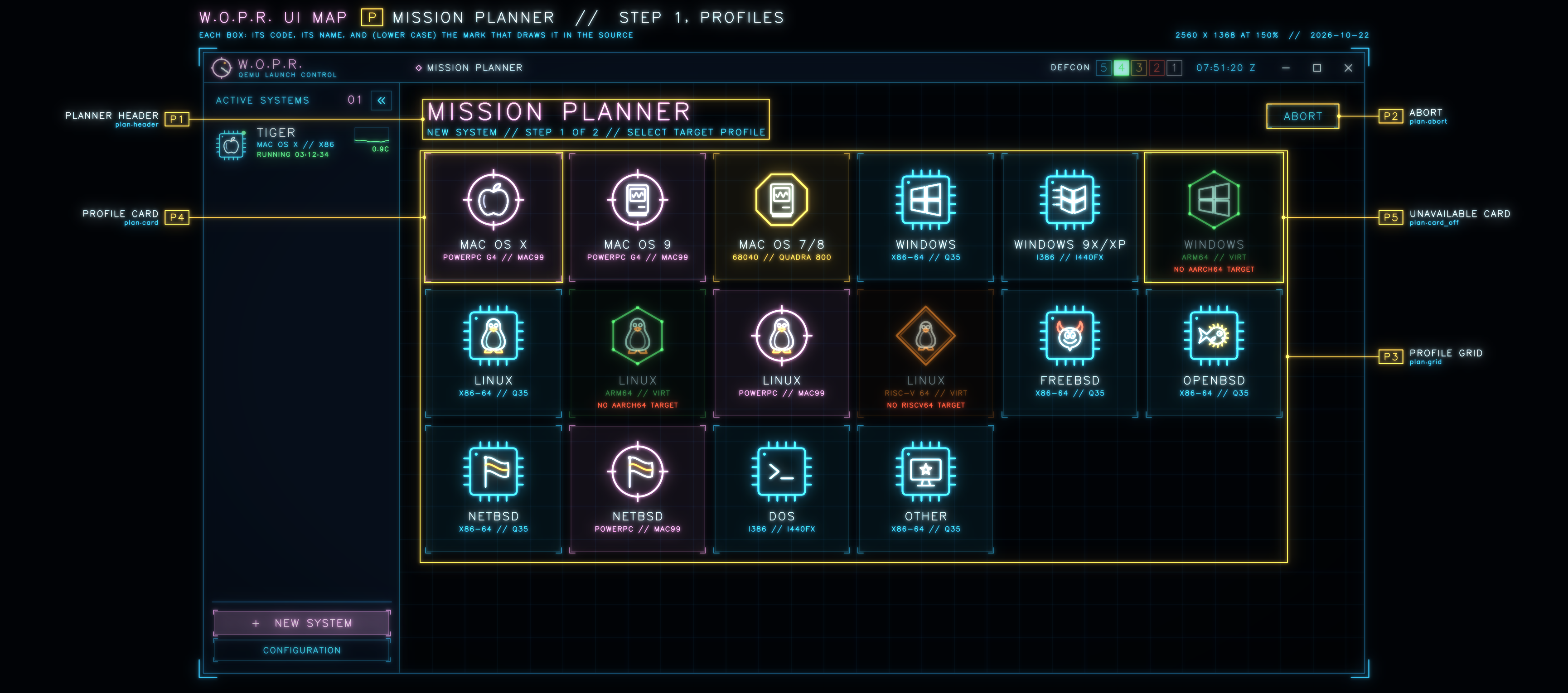
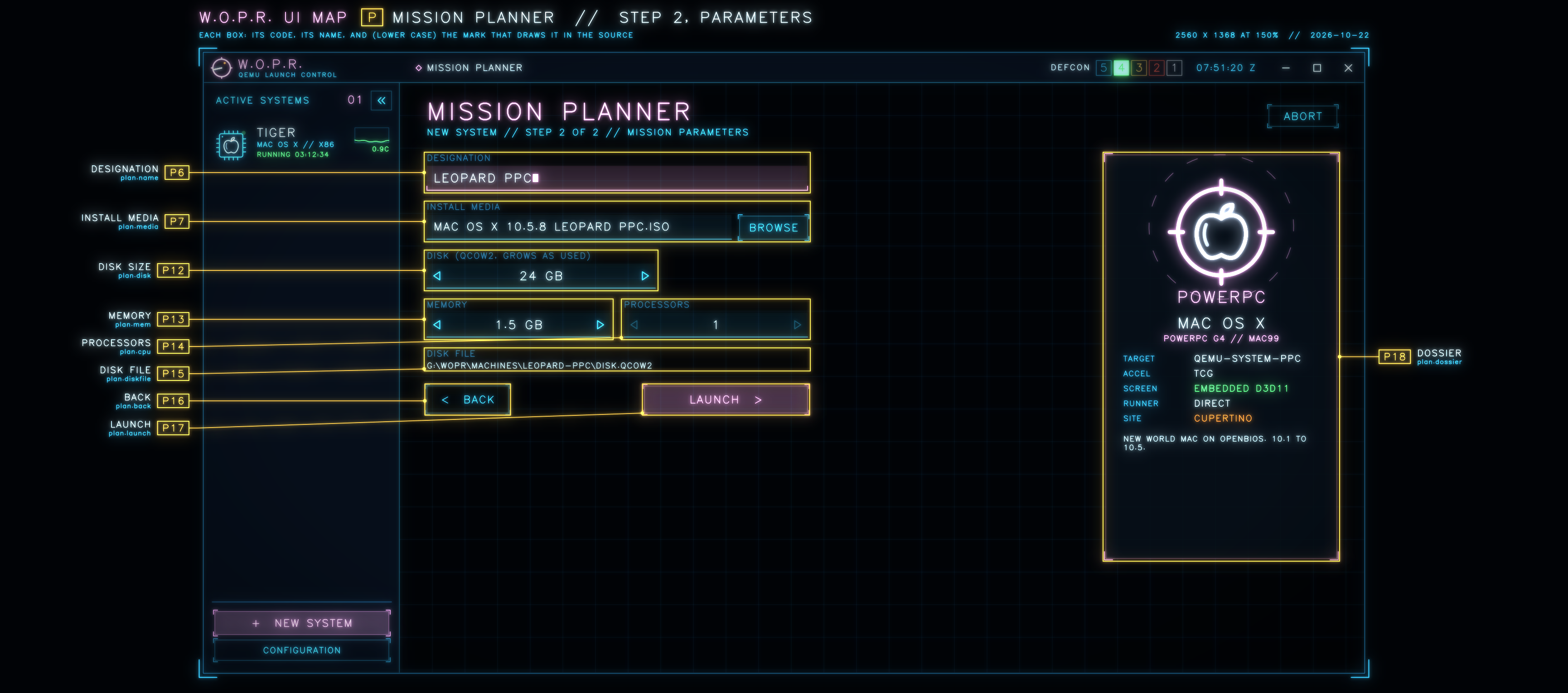
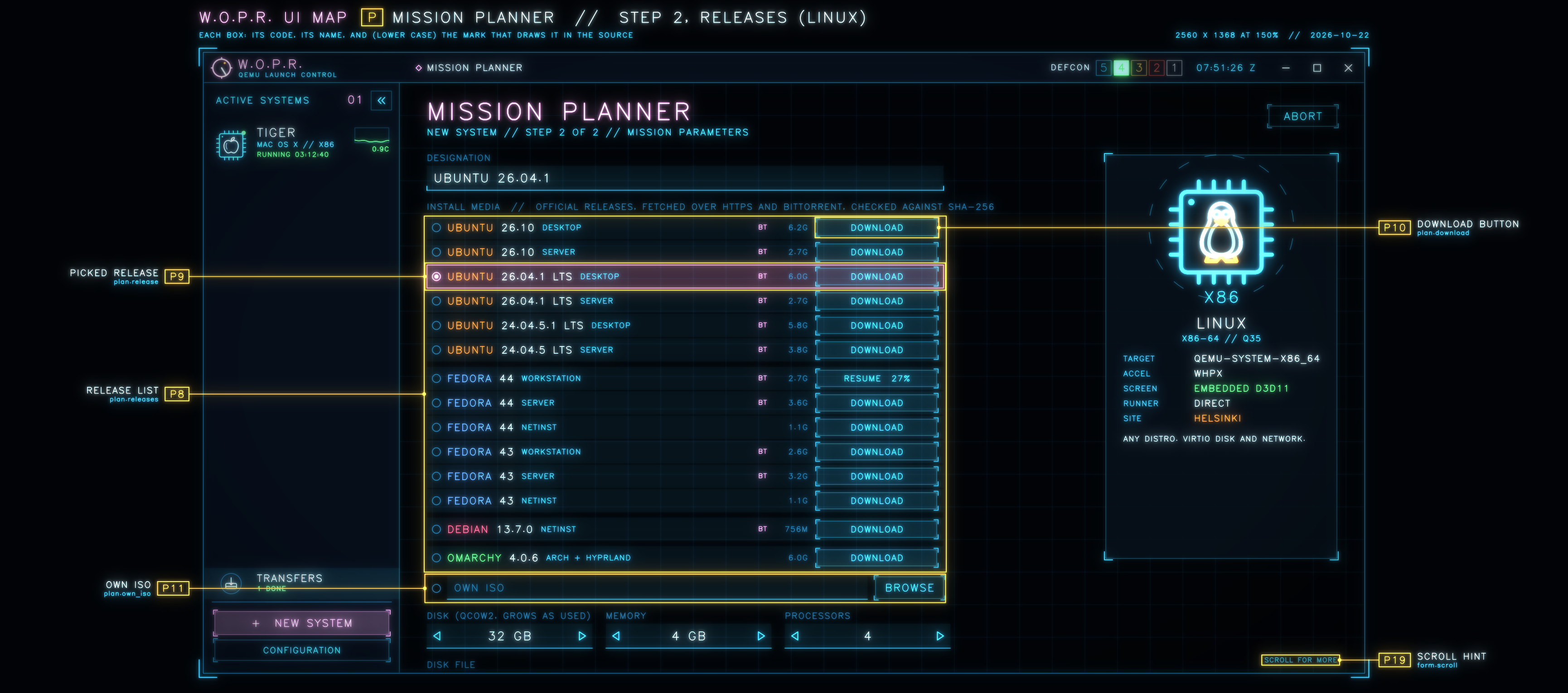
| CODE | NAME | IN THE SOURCE | WHAT IT IS |
|---|---|---|---|
| P1 | PLANNER HEADER | plan.header | Which step this is |
| P2 | ABORT | plan.abort | Back to the world display |
| P3 | PROFILE GRID | plan.grid | Every profile this PC can offer; it scrolls |
| P4 | PROFILE CARD | plan.card | A click picks it and goes to step 2 |
| P5 | UNAVAILABLE CARD | plan.card_off | Dimmed: this QEMU has no such target. A click says what to build |
| P6 | DESIGNATION | plan.name | The new system's name |
| P7 | INSTALL MEDIA | plan.media | An ISO to boot from (for Tiger: attach the Tiger DVD) |
| P8 | RELEASE LIST | plan.releases | Official releases, live from each project's servers, fetched over HTTPS and BitTorrent and checked against SHA-256 |
| P9 | PICKED RELEASE | plan.release | The one this system will install |
| P10 | DOWNLOAD BUTTON | plan.download | Or RESUME 27%, a progress bar, VERIFIED |
| P11 | OWN ISO | plan.own_iso | Any other installer |
| P12 | DISK SIZE | plan.disk | qcow2, so the file grows as the guest uses it |
| P13 | MEMORY | plan.mem | Steps up to what the profile allows |
| P14 | PROCESSORS | plan.cpu | Up to the profile's maximum |
| P15 | DISK FILE | plan.diskfile | Where the disk will be created |
| P16 | BACK | plan.back | To step 1 |
| P17 | LAUNCH | plan.launch | Or DOWNLOAD & LAUNCH, or LAUNCH WHEN READY while the media is on its way |
| P18 | DOSSIER | plan.dossier | The profile: QEMU target, accelerator, screen, runner, site, notes. Red when the target is missing |
| P19 | SCROLL HINT | form.scroll | The form goes on below |
SHEET I // ON THE HUB
The picture shows a Basilisk II disk. It's a bare HFS volume, so it boots from a copy wrapped with our own 68K SCSI driver.
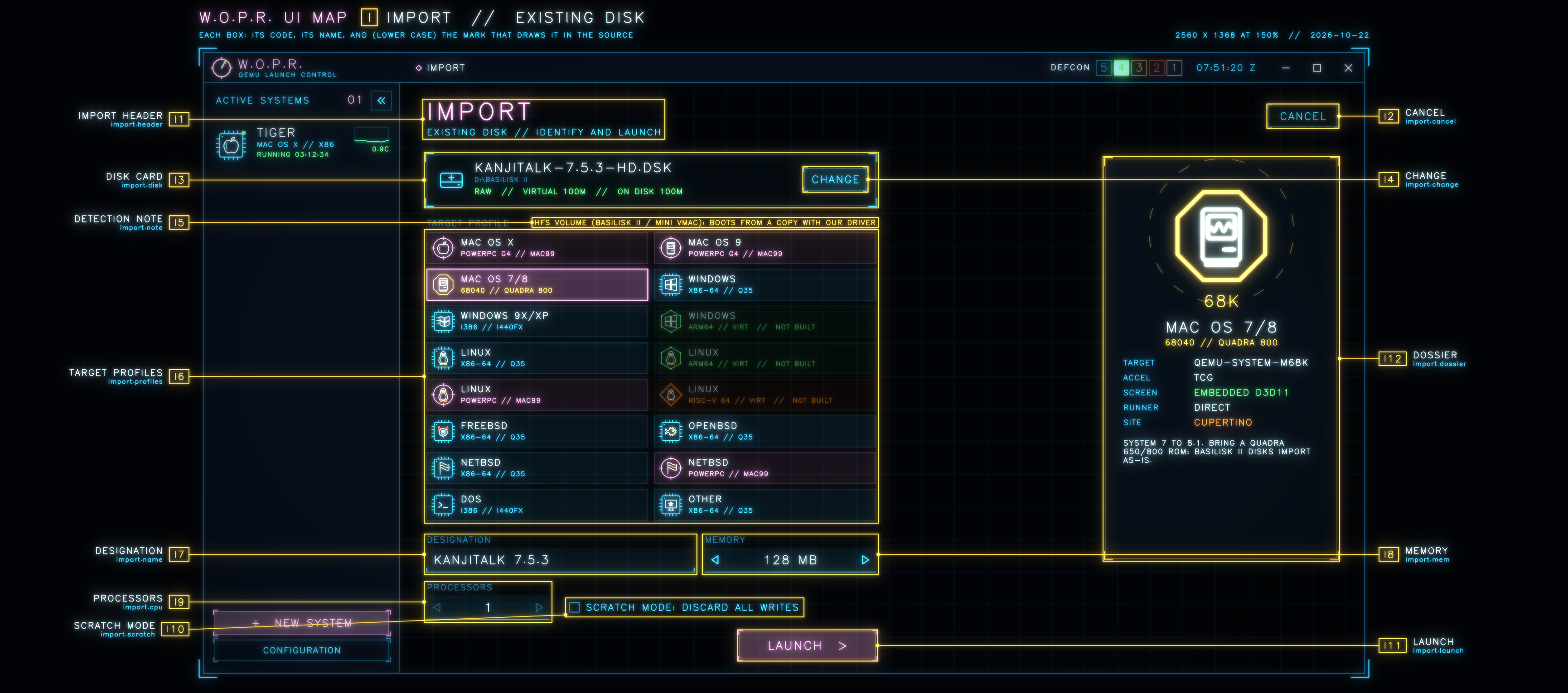
| CODE | NAME | IN THE SOURCE | WHAT IT IS |
|---|---|---|---|
| I1 | IMPORT HEADER | import.header | The title |
| I2 | CANCEL | import.cancel | Back to the world display |
| I3 | DISK CARD | import.disk | The file, its folder, and what qemu-img reports: format, virtual size, size on disk |
| I4 | CHANGE | import.change | Pick another file |
| I5 | DETECTION NOTE | import.note | What W.O.P.R. recognised in the disk, and what it will do about it |
| I6 | TARGET PROFILES | import.profiles | Its best guess is picked; NOT BUILT ones are dimmed |
| I7 | DESIGNATION | import.name | The name, taken from the file name |
| I8 | MEMORY | import.mem | Starts at the profile's default |
| I9 | PROCESSORS | import.cpu | Starts at the profile's default |
| I10 | SCRATCH MODE | import.scratch | Runs without writing to the disk. Forced on while another system has it open |
| I11 | LAUNCH | import.launch | Adds it to the known systems and starts it |
| I12 | DOSSIER | import.dossier | The same as P18 |
SHEET E // ON THE HUB
It opens from a known system's row or its EDIT button on the world display, and from CONFIG in the VM view. Nothing changes until SAVE.
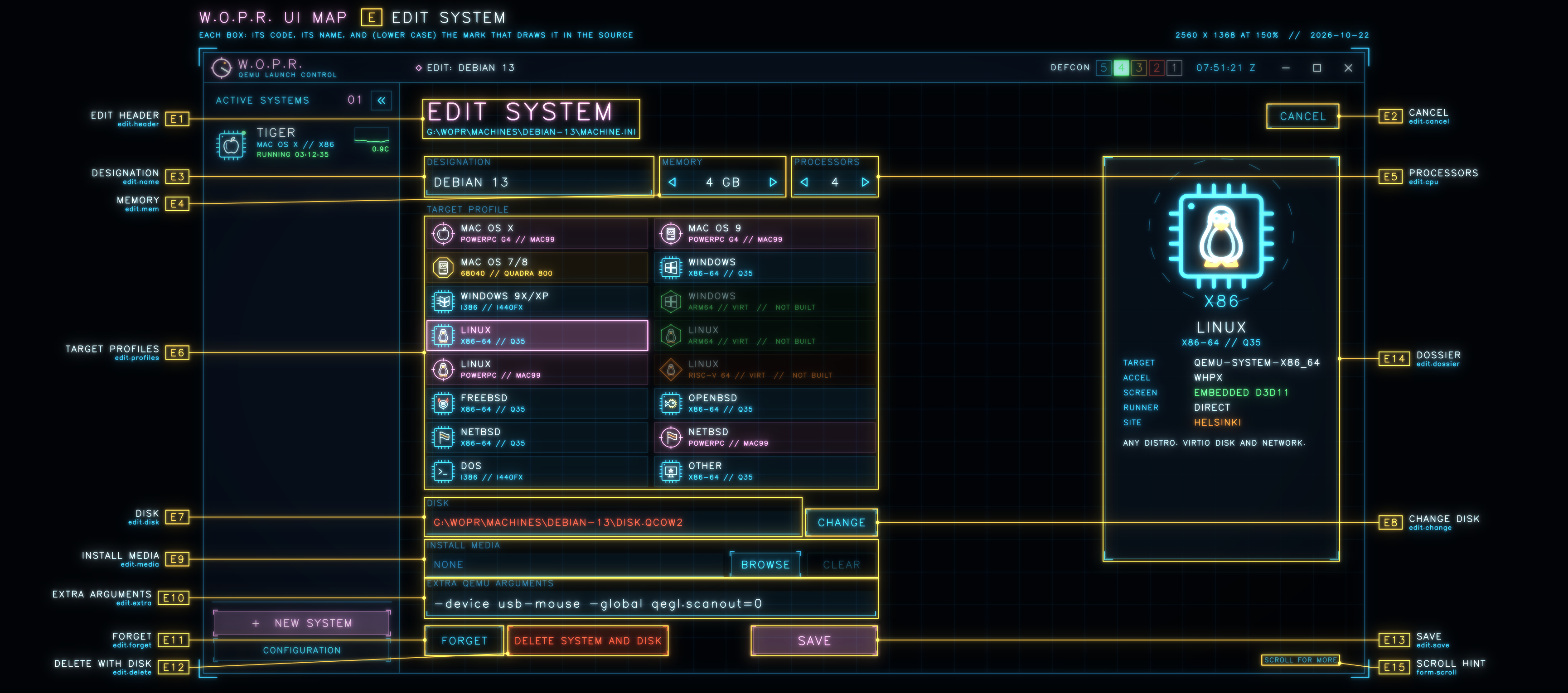
| CODE | NAME | IN THE SOURCE | WHAT IT IS |
|---|---|---|---|
| E1 | EDIT HEADER | edit.header | The machine.ini this writes; an amber line while the system runs |
| E2 | CANCEL | edit.cancel | Leaves without saving |
| E3 | DESIGNATION | edit.name | The name |
| E4 | MEMORY | edit.mem | Up to the profile's maximum |
| E5 | PROCESSORS | edit.cpu | Up to the profile's maximum |
| E6 | TARGET PROFILES | edit.profiles | The profile it runs as |
| E7 | DISK | edit.disk | The disk image: red when it's missing, with its size on disk above |
| E8 | CHANGE DISK | edit.change | Not while the system runs |
| E9 | INSTALL MEDIA | edit.media | An ISO with BROWSE and CLEAR, and whether to boot from it. For Tiger: attach the Tiger DVD |
| E10 | EXTRA ARGUMENTS | edit.extra | Raw QEMU arguments, case kept. For Tiger they go to run-tiger -Extra |
| E11 | FORGET | edit.forget | Takes it off the list; the disk stays |
| E12 | DELETE WITH DISK | edit.delete | Deletes the disk too, after asking. Shown only when the disk sits in the system's own folder |
| E13 | SAVE | edit.save | Writes machine.ini |
| E14 | DOSSIER | edit.dossier | The same as P18 |
| E15 | SCROLL HINT | form.scroll | The same as P19 |
SHEET C // ON THE HUB
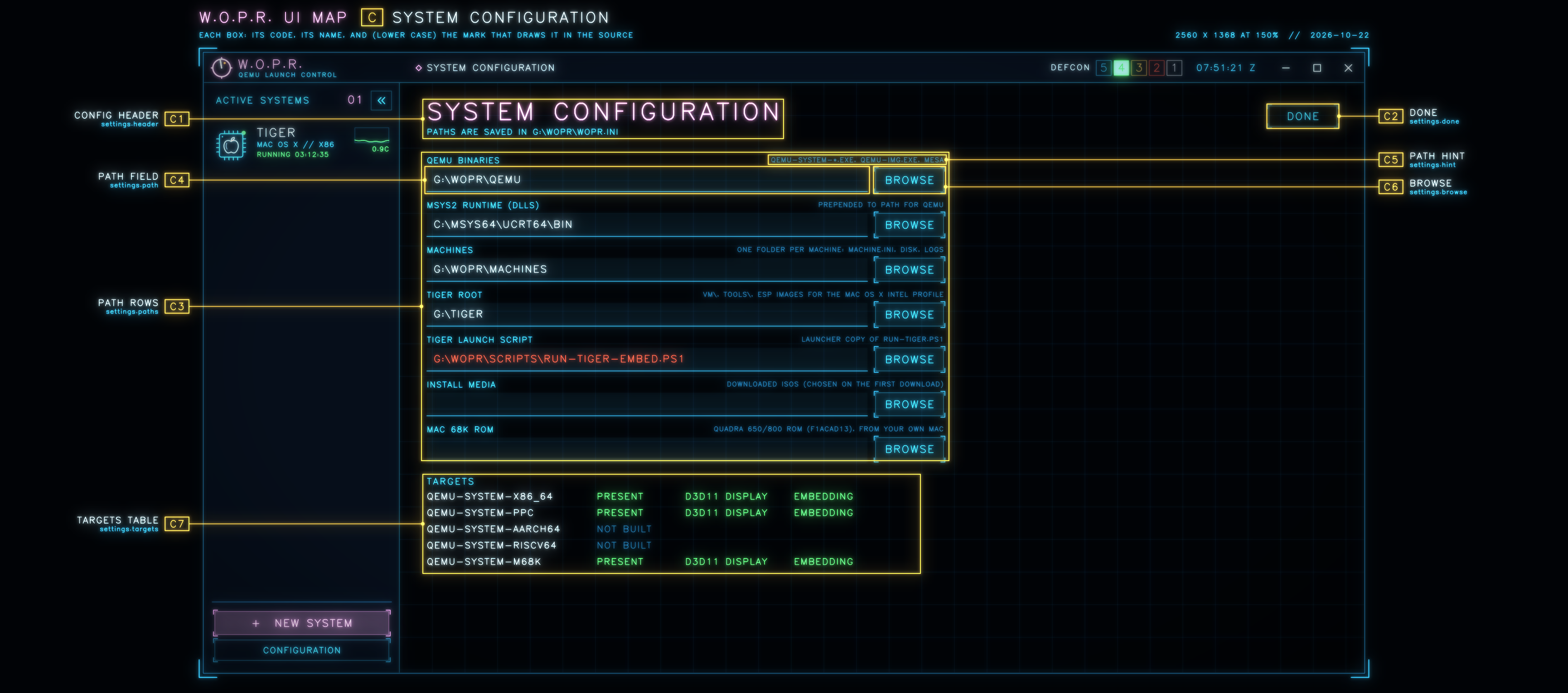
| CODE | NAME | IN THE SOURCE | WHAT IT IS |
|---|---|---|---|
| C1 | CONFIG HEADER | settings.header | Where the settings live (wopr.ini) |
| C2 | DONE | settings.done | Back to the world display |
| C3 | PATH ROWS | settings.paths | QEMU binaries, MSYS2 runtime, machines, Tiger root, Tiger launch script, install media, Mac 68K ROM |
| C4 | PATH FIELD | settings.path | Red when the path doesn't exist |
| C5 | PATH HINT | settings.hint | What belongs there |
| C6 | BROWSE | settings.browse | Saves straight away (a ROM must pass its checksum first) |
| C7 | TARGETS TABLE | settings.targets | Each qemu-system target: present or not built, with or without the D3D11 display, embedding or not |
SHEET S // ON THE HUB
This view appears the first time a download needs somewhere to go. The drive names in the picture are samples.
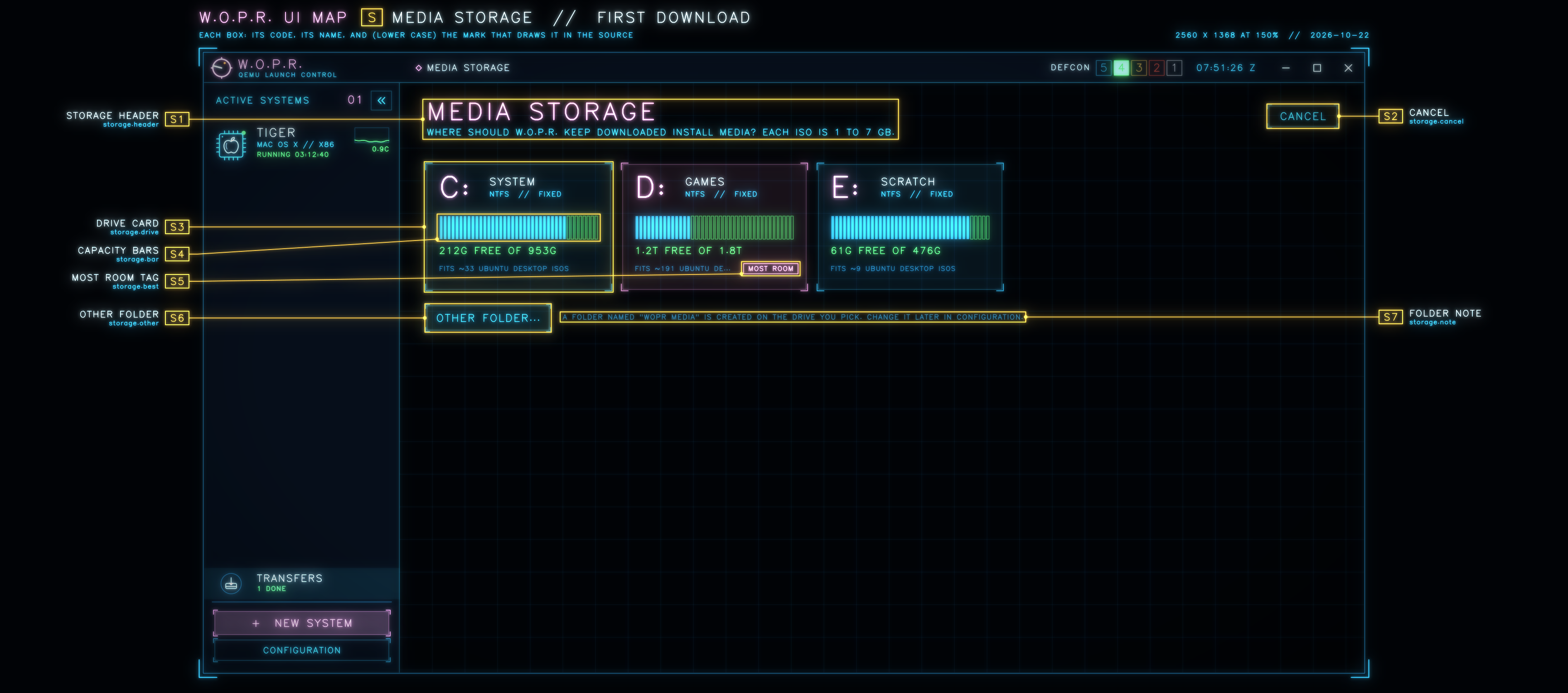
| CODE | NAME | IN THE SOURCE | WHAT IT IS |
|---|---|---|---|
| S1 | STORAGE HEADER | storage.header | The question, and how big an ISO is |
| S2 | CANCEL | storage.cancel | Back to where you were |
| S3 | DRIVE CARD | storage.drive | A click keeps install media in WOPR Media on that drive |
| S4 | CAPACITY BARS | storage.bar | Lit is used, dark is free; amber when the drive is over 90% full |
| S5 | MOST ROOM TAG | storage.best | The fixed drive with the most free space |
| S6 | OTHER FOLDER | storage.other | Any folder instead |
| S7 | FOLDER NOTE | storage.note | What gets created, and where to change it later (C3) |
SHEET T // ON THE HUB
Install media on the way in, over HTTPS range requests and BitTorrent at once. The picture uses sample data.
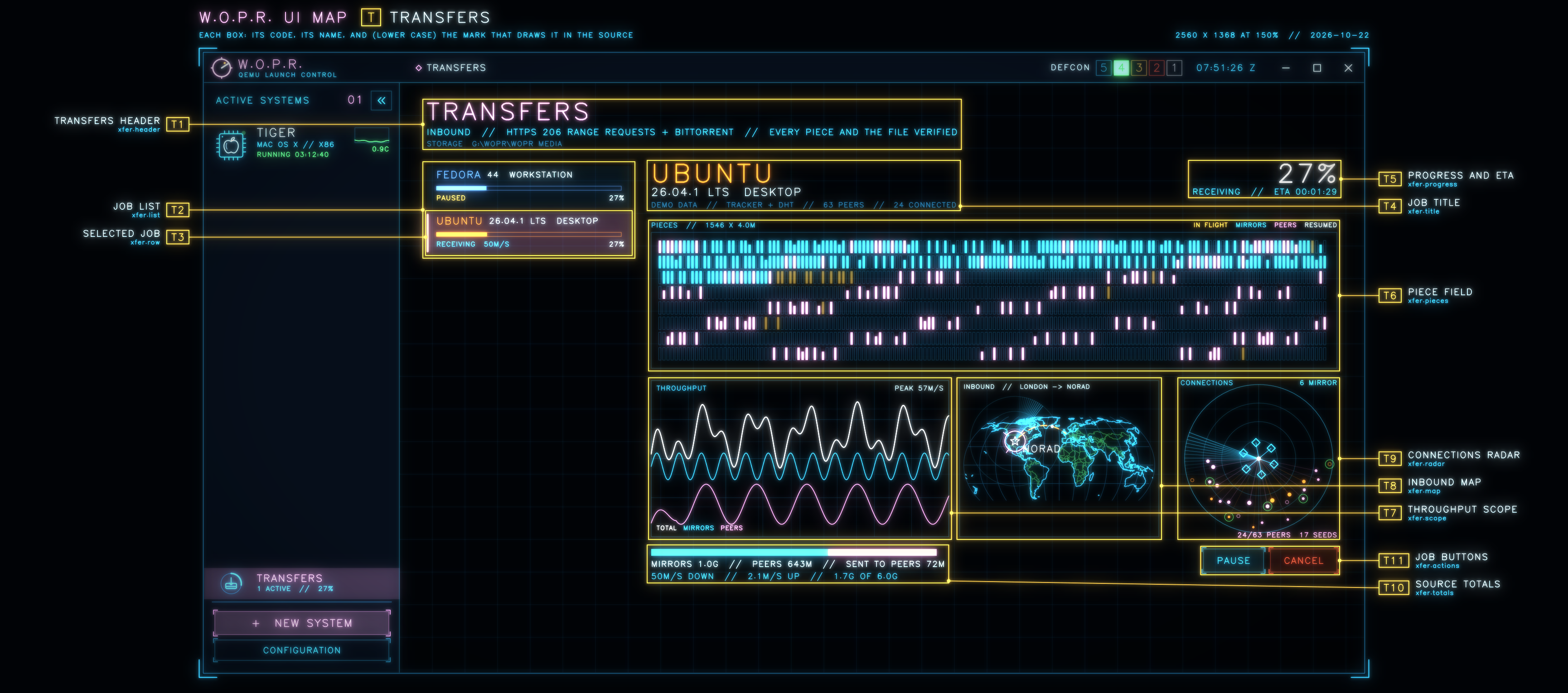
| CODE | NAME | IN THE SOURCE | WHAT IT IS |
|---|---|---|---|
| T1 | TRANSFERS HEADER | xfer.header | With the storage folder |
| T2 | JOB LIST | xfer.list | Every download, with its state, rate and percentage |
| T3 | SELECTED JOB | xfer.row | The one shown on the right |
| T4 | JOB TITLE | xfer.title | Distribution, release, and the engine's status line: tracker, DHT, peers |
| T5 | PROGRESS AND ETA | xfer.progress | Percentage, state and time left |
| T6 | PIECE FIELD | xfer.pieces | Every piece as a bar: cyan from mirrors, pink from peers, amber in flight, white already on disk. The SHA-256 check sweeps it at the end |
| T7 | THROUGHPUT SCOPE | xfer.scope | The last two minutes: total, mirrors, peers, and the peak |
| T8 | INBOUND MAP | xfer.map | The track from the release's home to NORAD |
| T9 | CONNECTIONS RADAR | xfer.radar | Us at the centre, mirrors on the inner ring, slower peers further out. A green ring marks a peer we're sending to |
| T10 | SOURCE TOTALS | xfer.totals | Bytes from mirrors against bytes from peers, what we sent back, the rates, done of total |
| T11 | JOB BUTTONS | xfer.actions | PAUSE or RESUME, and CANCEL, which needs a second click. When it's done: SHOW IN FOLDER, REMOVE FROM LIST |
SHEET O // ON THE HUB
Three things that draw over the views.
There's a fourth overlay: the tooltip with a system's name when the sidebar is collapsed. It's a small window of its own, so it doesn't show in the offscreen pictures.
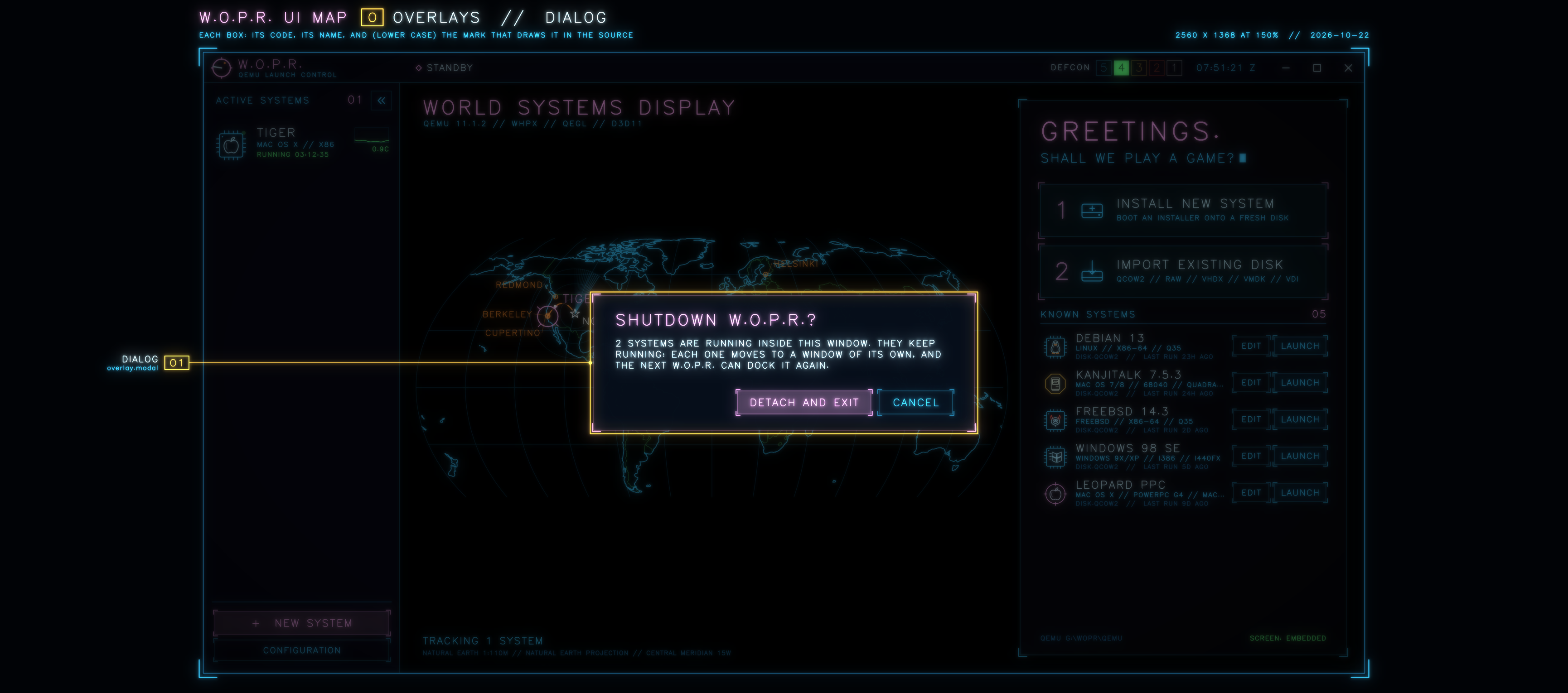
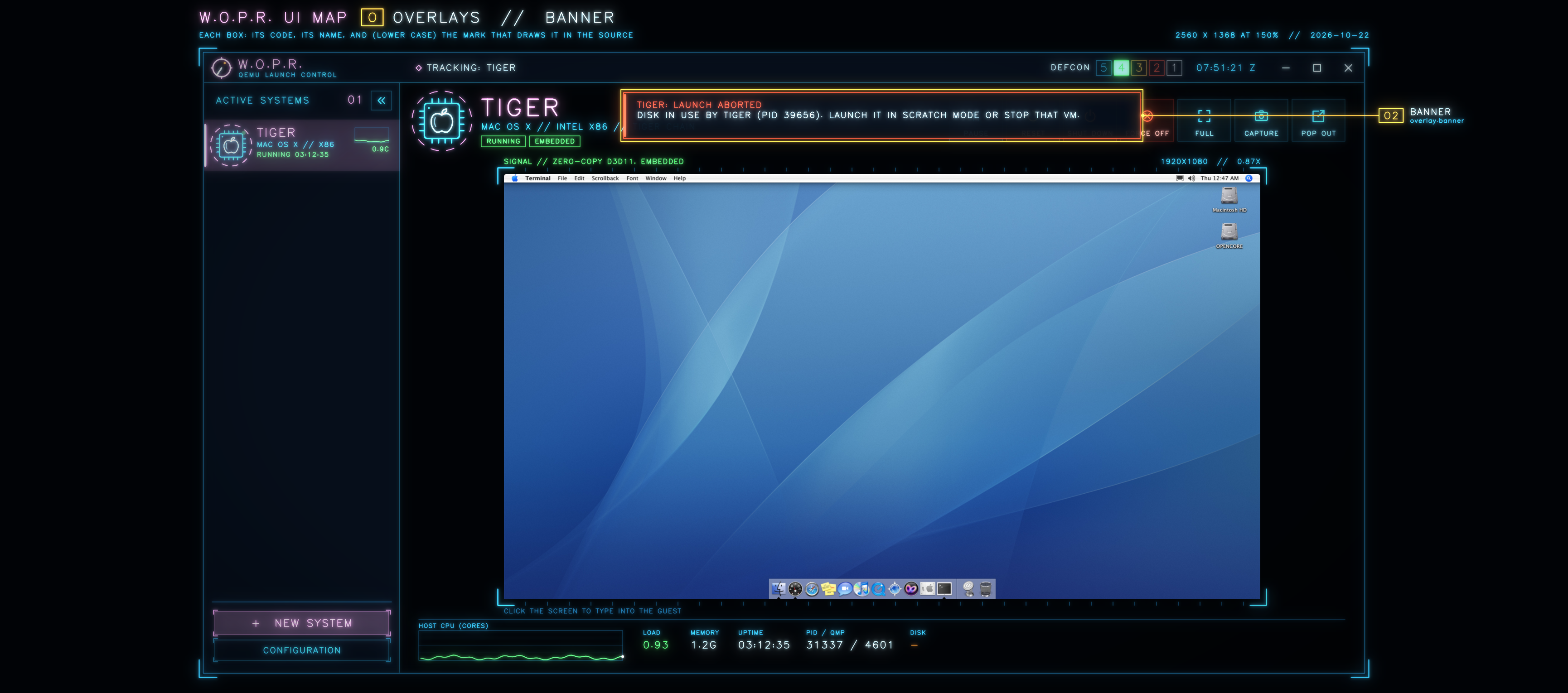
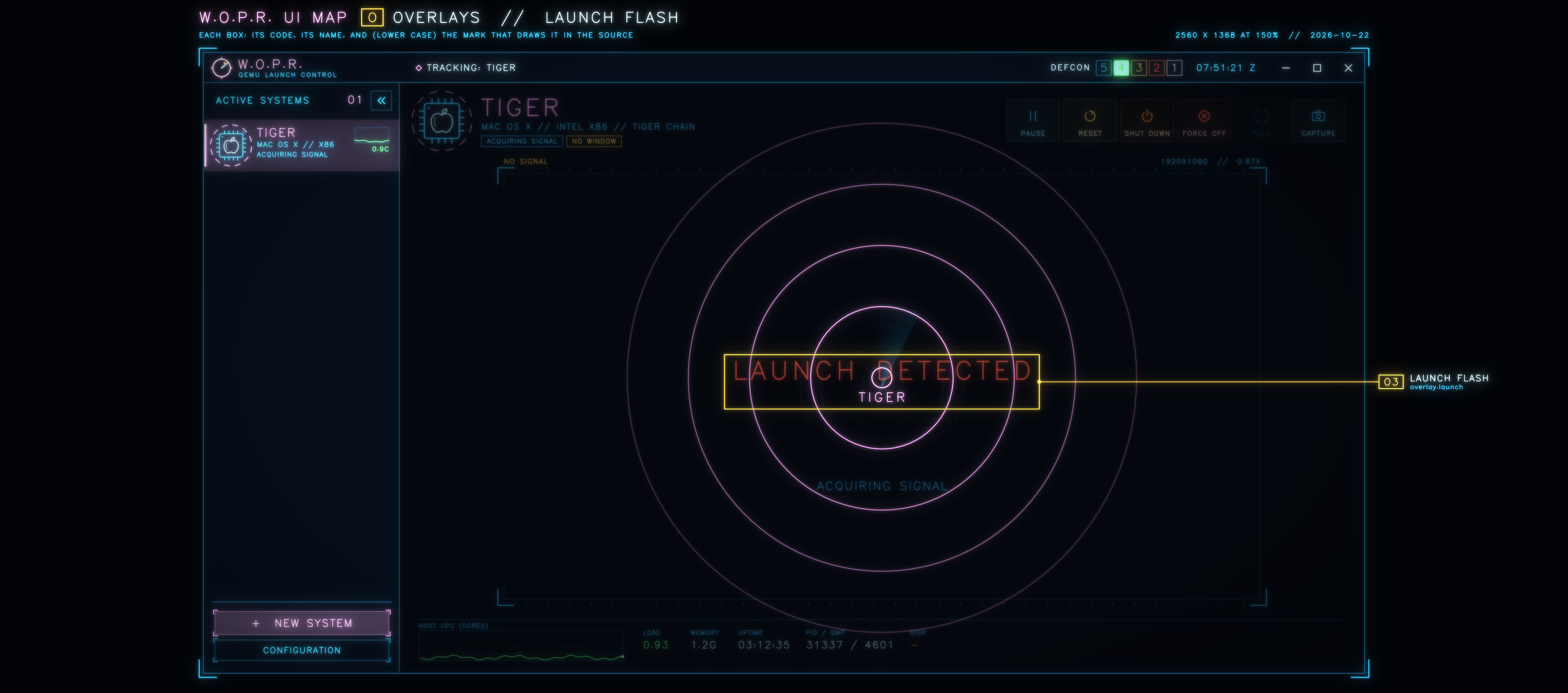
| CODE | NAME | IN THE SOURCE | WHAT IT IS |
|---|---|---|---|
| O1 | DIALOG | overlay.modal | Asks first: before anything that can't be undone, or here, before W.O.P.R. quits with systems running (they move to windows of their own) |
| O2 | BANNER | overlay.banner | A notice at the top of the view: red for failures, amber for warnings, cyan for news. It fades after 10 seconds, and a click dismisses it |
| O3 | LAUNCH FLASH | overlay.launch | Plays for a second and a half when a system starts, before its screen comes up |